Configuring Pop-up Blockers
If your blocking software is set to block all pop-ups, then you will not be able to use Fourth Limited portals.
Some software allows you to specify sites from which pop-ups are allowed, while others have global settings.
As an alternative, try holding down the CTRL key when clicking the Login button in FnB Manager.
This action will override the majority of pop-up blockers.
For more specific information, please choose the appropriate item from the following list;
Google Chrome
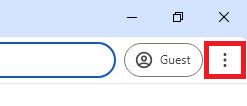 Google Chrome prevents websites from opening a new window or tab on top of your current web page by default.
To enable or disable the Pop-up blocker for FnB Manager;
Google Chrome prevents websites from opening a new window or tab on top of your current web page by default.
To enable or disable the Pop-up blocker for FnB Manager;
- Click on the Settings icon on the top right-hand corner of your Google Chrome browser

- Select Privacy and security
- Select Site Settings
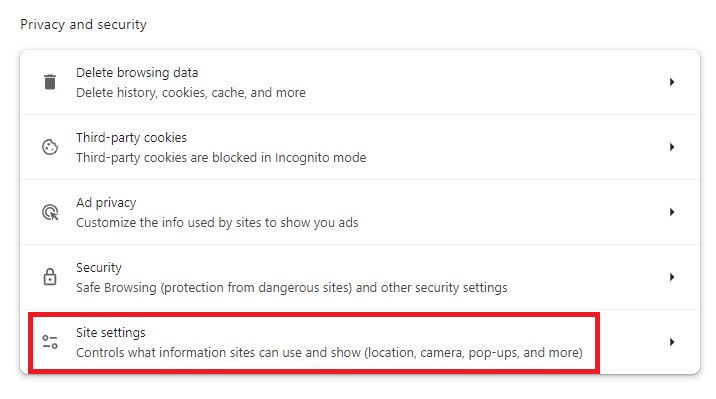
- Under Content, select Pop-ups and redirects.
- Go to Allowed to send pop-ups and use redirects section, and then Add.
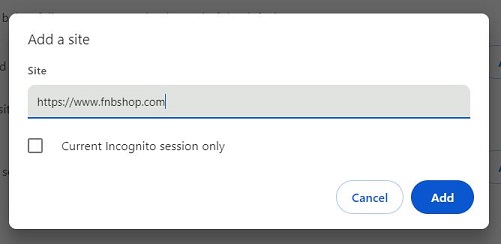
- Type "https://www.fnbshop.com" into the dialog box to allow to FnB Manager to create pop-ups and then select Add.
The URL should now appear in your Allow list.
Go to the top of the page
Microsoft Edge
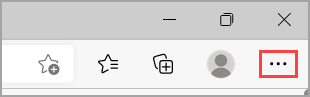 Microsoft Edge prevents websites from opening a new window or tab on top of your current web page by default.
To enable or disable the Pop-up blocker for FnB Manager;
Microsoft Edge prevents websites from opening a new window or tab on top of your current web page by default.
To enable or disable the Pop-up blocker for FnB Manager;
- Click on the Settings icon on the top right-hand side of your Microsoft Edge browser
- Select Settings > Cookies and site permissions.
- Under All permissions, select Pop-ups and redirects.
- Go to Allow section, and then Add.

- Type "https://www.fnbshop.com" into the dialog box to allow to FnB Manager to create pop-ups and then select Add.
The URL should now appear in your Allow list.
Go to the top of the page
Other pop-up blockers
For other pop-up blockers, we recommend either
- Setting an option that blocks only unrequested pop-ups, or
- Setting an option that blocks all pop-ups but allows for some websites to be
specified as exceptions and including Fourth Limited portals in your
list of exceptions.
The Help for your Web Browser software should tell you how to do this.
If the firewall or security software covers a network, not just your own computer, then you should consult your Network Administrator.
Another possible reason for the Fourth Limited portals are not working is that your firewall does
not allow any JavaScript commands to be passed (JavaScript is used to create
pop-up windows).
If this is the case, then you will need to ask your Network Administrator to enable JavaScript for the Fourth Limited portals.
Go to the top of the page
|